

What if the fastest way to find a social post image wasn’t adding more folders, but organizing assets around the campaigns that reuse them? The best way to organize social media assets is to create a clear path from source file to approved, platform-ready creative, not a maze of folders.
If visuals are scattered across drives, chats, and personal devices, it’s easy to grab an outdated version. File names and folder habits often vary from one client or campaign to the next. The result is wasted search time, avoidable review delays, and uncertainty about whether the right asset is ready to publish.
This guide lays out a repeatable system for finding, approving, and reusing assets without slowing down publishing. You’ll learn how to build a practical folder structure, name files clearly, track approved versions, and connect asset handoffs to content review and scheduling. The goal isn’t perfect filing. It’s a workflow that helps everyone find the right creative and use it with confidence.
Key Takeaways
- Organize social media assets around brands, campaigns, channels, and production status, then use metadata to make them easy to find.
- Choose folders, DAM software, or a social publishing workspace based on the job you need done, from file discovery to approvals and publishing.
- Assign clear owners for asset intake, approval, final selection, and archiving to keep files current and handoffs predictable.
- Pair an organized asset library with a publishing workflow that supports brand-voice content, platform-specific adaptations, collaboration, and scheduling.
- Build a system your team can maintain as campaigns evolve, so approved creative is easier to reuse without slowing down publishing.
Organizing social media assets: Start with the problems
A social media asset is any file or reference that helps a team plan, create, approve, or publish content. That includes finished images and videos, editable templates, campaign materials, copy references, and guidance on how each item may be used. The range reflects how social platforms combine publishing, interaction, and other features, as outlined in What is social media?
The challenge isn’t simply keeping files somewhere. It’s knowing which file is right for a specific post, whether it’s approved, and what instructions go with it. A designer might save a campaign image to a shared drive, while a client sends updated copy in chat and a teammate keeps an earlier version on a laptop. These handoffs create confusion: teams search in multiple places, request files again, or recreate creative that already exists.
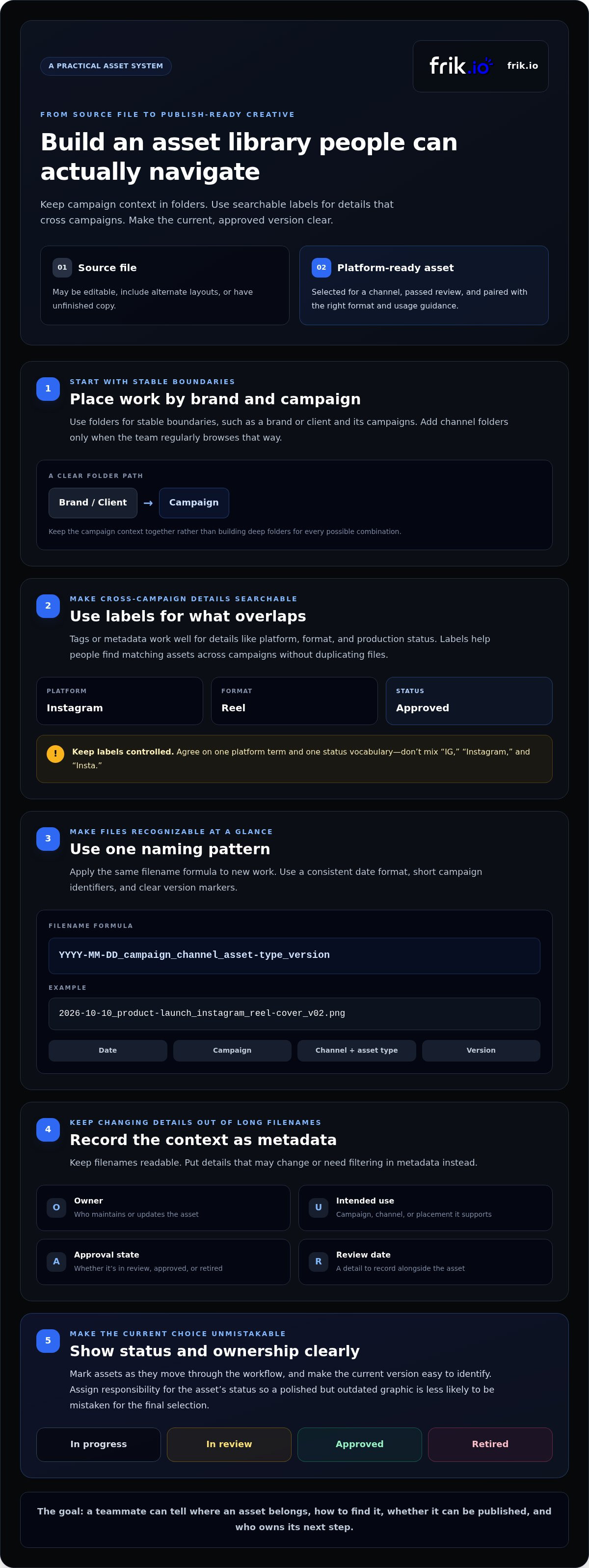
Start by distinguishing a source file from an approved, platform-ready asset. A source file may be an editable design with alternate layouts or unfinished copy. A ready-to-use version has been selected for a particular channel, passed review, and includes the right format and usage guidance. Make that distinction visible. Every relevant item should be findable, current, usable, and clearly governed, with someone responsible for its status.
Which social media assets should your system cover?
Group assets by how teams use them, not just by file type. Reusable brand resources, such as logos, fonts, evergreen templates, and tone references, support multiple campaigns. Campaign-specific materials, such as launch graphics, event videos, or a limited-time offer, need their own context and lifecycle.
- Visuals: finished images, video, and channel-ready variations.
- Working files: editable templates and design sources used to create variations.
- Campaign materials: creative, briefs, and supporting copy references tied to a specific initiative.
- Usage guidance: approval status, permitted use, attribution details, or an expiration note where relevant.
Keep notes beside the asset or link to them clearly. A visual without its usage limits or approval status can look ready while still being unsuitable to publish. Include enough context for the next person to act without having to track down the person who created it.
What does an organized asset library make easier?
A useful structure helps a teammate move from a publishing need to the right creative without guessing. If someone needs an approved campaign image for a particular channel, its name, location, and status should make the intended choice clear. Consistent labels also reduce duplicate requests and unnecessary recreation because existing work is easier to recognize and reuse.
Status is a practical safeguard. Mark items as in progress, in review, approved, or retired, and make the current version easy to identify. That makes it less likely that a polished but outdated graphic will be mistaken for the final selection.
Build around the everyday decisions: what is reusable, what belongs to this campaign, what can be published, and who owns the next step. Make those answers easy to see, and the system supports the workflow instead of becoming another filing chore.
Build a social media asset structure people can navigate and maintain
A useful structure answers two questions quickly: where does this asset belong, and how can the team find it again? Start with a hierarchy that reflects ownership and campaign work, then use labels for details that cut across folders. Don’t create a folder for every possible combination. Make common routes obvious and keep the system simple enough for people to use consistently.
Choose folders, tags, or both for social media assets
Use folders for stable boundaries, such as a brand or client and its campaigns. Within a campaign, add channel folders only if the team regularly browses that way. Tags or metadata work better for overlapping details like platform, format, and production status. A short path such as Brand → Campaign, paired with searchable labels, is usually easier to maintain than deep folders for every channel, format, and approval stage.
For example, a team might keep a product-launch campaign under its client folder, then label individual assets “Instagram,” “Reel,” or “Approved.” The folder preserves campaign context; the labels let people find approved Reels across campaigns without duplicating files. Keep labels controlled: agree on one platform term and one status vocabulary rather than mixing “IG,” “Instagram,” and “Insta.”
Set naming and metadata rules that support retrieval
Choose one filename pattern and apply it to new work. A practical formula is YYYY-MM-DD_campaign_channel_asset-type_version. Use a consistent date format, short campaign identifiers, and clear version markers such as “v01” or “v02.” For example: 2026-10-10_product-launch_instagram_reel-cover_v02.png. This tells a teammate when the asset was created, what it supports, where it’s intended to run, and which iteration they’re viewing.
Keep filenames readable, not overloaded. Put details that may change or need filtering in metadata instead of adding every note to the file name. Record:
- Owner: who maintains or updates the asset.
- Intended use: the campaign, channel, or placement it supports.
- Approval state: whether it’s in review, approved, or retired.
- Review date: when usage guidance or creative should be checked again.
Avoid labels like “final-final,” “new,” and “misc.” They rely on someone remembering the backstory. Instead, update the version or status field and make the approved selection clear. Write the naming rule in a shared guide, show a few examples, and apply it to incoming assets before they spread across channels. A shared social content and publishing workspace can bring drafting, review, and scheduling together, while asset folders remain the source for files.
Compare folders, DAM software, and social media workspaces
Choose a system based on the work you need it to do. Shared folders provide a straightforward place to keep files. A digital asset management (DAM) system is designed to make a larger collection easier to search and govern. A social publishing workspace focuses on creating, reviewing, scheduling, and publishing content. These tools can complement one another; a publishing workspace doesn’t automatically replace the place where original media files are stored.
| Approach | Setup effort | Discoverability | Permissions | Approvals | Publishing connections |
|---|---|---|---|---|---|
| Shared cloud folders | Low to start; requires consistent upkeep | Works well with clear folders and names | Basic access controls, depending on the service | Often handled separately | Usually requires a handoff to a publishing tool |
| DAM system | More planning for taxonomy and governance | Built for asset search, metadata, and filtering | Can support structured access and asset governance | May support review, depending on the system | May connect with publishing tools, depending on integrations |
| Social publishing workspace | Requires workflow and channel setup | Helps locate content within the publishing workflow | Collaboration access depends on the platform | Supports content review workflows | Focused on scheduling and publishing |
When shared folders are enough for a social team
Shared folders are a practical starting point for solo creators and small teams with a manageable library, a few collaborators, and simple access needs. Establish who can edit or share files, follow one naming convention, and keep campaign materials in predictable locations. This lightweight setup can work until duplicates multiply, no one knows who owns the current file, or reviewers repeatedly ask whether creative is approved.
When a DAM or publishing workspace adds value
A DAM can help multi-client teams manage larger collections through centralized discovery, metadata, and governance. A publishing workspace is more useful when a team needs to collaborate on posts, route approvals, schedule content, and publish across social channels. Choose based on the bottleneck: finding and governing media, or moving content from draft to publication.
For a solo creator, shared folders may be sufficient. A small team often benefits from a publishing workspace when review and scheduling become hard to coordinate. Multi-client operations may need a DAM for asset governance, a publishing workspace for execution, or both. If you use both, document how approved files move into posts. Choose tools around the workflow, rather than assuming one platform must do everything.
Set up a repeatable workflow for social media assets
A clear structure works best when every asset follows the same route from arrival to archive. Assign an owner at each handoff, record the context people need, and make status changes visible. Campaign themes can guide those groupings: understanding what a content pillar is helps teams connect individual creative to the broader themes it supports.
Move each asset through intake, review, and approval
Choose one intake location and make it the default for files from designers, clients, and teammates. At intake, capture the campaign, owner, intended channel, and intended use. Then move assets through distinct states so nobody has to guess whether a file is ready.
- Receive and label: The intake owner checks that the file opens and records its campaign, creator or owner, channel, and intended placement.
- Review the creative: The reviewer checks the content against the brief and brand guidance. Keep decision notes with the file or link them to the campaign record.
- Approve and select: The designated approver records the decision. A final-selection owner identifies the version cleared for use and updates its status to approved.
- Prepare for publishing: Pair the approved creative with its caption, channel adaptation, and planned publishing date. Confirm the file format and channel fit, then check the approval status and version before scheduling.
- Archive or retire: After the campaign, the asset owner marks expired or superseded creative as retired and preserves useful context for future reference.
Keep draft, in review, approved, and retired distinct. If review requests a change, return the item to draft or review rather than leaving an old approval label in place. This simple control makes the current decision easier to trust.
Connect approved assets to content and publishing
An approved visual is only one part of a publishable post. Connect it to the right caption, channel-specific copy, and intended date so the publishing owner can see the complete content package. Consistent copy matters too. Use AI brand-voice guidance to help keep captions aligned with the style guide while adapting the message for each platform.
A social publishing workspace can support drafting, platform adaptation, client review, and scheduling alongside your asset system. frik.io brings those content and publishing steps into a shared workflow without replacing the storage location where your team maintains media files. Learn about frik.io’s social publishing workflow and how it connects content creation and approvals with asset management.
Connect organized assets to a social media publishing workflow
An asset library and a social publishing workspace solve related but different problems. The library is where your team governs source files and approved media, with clear ownership, usage notes, and version history. The publishing workspace connects selected creative to the post itself, helping teams draft, review, schedule, and publish. Treating these roles separately keeps media governance clear while giving content a smoother path to the audience.
The handoff is where organization becomes operational. Once a teammate selects an approved visual, they can pair it with the caption, adapt the copy for each platform, route the post for review, and schedule it. For more on how these steps fit into a broader workflow, see this AI social media management platform guide.
Use one campaign to test the system before scaling
Don’t migrate the full library at once. Pick one active campaign with a manageable set of creative and clear owners. Use it to test whether teammates can locate the approved file, understand its intended use, and move it through review without relying on private messages or verbal context.
Notice where people hesitate. Do they need a clearer label, a different permission, or a more explicit handoff between approval and scheduling? Adjust the process based on those friction points, then use the refined rules for the next campaign. A focused test gives the team a practical standard before a broader migration.
Bring asset organization into a collaborative publishing workflow
Keep source and approved media governed in the team’s asset system. Then bring the selected creative into the publishing workflow alongside its caption and channel-specific adaptation. frik.io supports brand-voice drafting, platform-specific post adaptation, collaborative client approvals, and scheduling. It complements the asset system rather than replacing it as the home for media files.
Before a post moves forward, confirm the selected creative is approved, the caption fits the channel, and the review decision is recorded in the publishing workflow. frik.io can be trained on a user-provided style guide to help teams draft copy in a consistent brand voice, with a human review step. This keeps copy guidance connected to the visual workflow without treating a draft as final approval.
The best way to organize social media assets is a workflow your team can prove in practice. Standardize one active campaign first, refine its labels and handoffs, then scale the pattern across the library. Once the asset process is clear, see how the frik.io social media workspace connects approved creative with drafting, collaboration, and publishing.
Turn your asset system into a repeatable publishing habit
Make your next step small and deliberate: choose one upcoming campaign, apply your naming and approval rules, and note where the handoff is unclear. Use what you learn to refine the process before expanding it. The best system is one your team can keep using as campaigns and channels change.
Once the asset workflow is clear, connect it to the work that happens next. frik.io can draft captions in a user-trained brand voice, adapt posts for different platforms, and bring client review and scheduling into a shared social content workflow. Your team can keep governing media in its asset system while moving approved creative toward publication with greater clarity.
Explore frik.io’s social content workflow to connect asset organization with drafting, collaboration, and publishing.
Frequently Asked Questions
What is the best way to organize social media assets?
The best way to organize social media assets is to make the right choice easy to identify when someone needs it. Test your setup by asking a teammate unfamiliar with a campaign to find a usable visual from a realistic request, such as “approved launch creative for a story.” If they need a private explanation, improve the labels or instructions. The system should support the way people search, not just reflect how files were created.
How should I name social media files so they are easy to find?
Use consistent, searchable terms that describe the campaign and the asset’s purpose, then distinguish versions clearly. For example, “spring-launch-story-cover-v03” is more useful than “new graphic final.” Avoid relying on color descriptions or a creator’s initials as the only clues, since teammates may not know them. Keep filenames easy to scan, and store longer details, such as usage notes or approval comments, in the asset record or a linked brief.
Should social media assets be organized by platform or by campaign?
Use the campaign as the main grouping when creative supports a shared initiative across channels. Then identify platform-specific variations with labels or subfolders. For example, a campaign may have one source visual plus separate versions for a feed post and a story. Organizing only by platform can split related creative across the library, while campaign grouping preserves context. Make the platform easy to filter or recognize without creating unnecessary duplicates.
Are Google Drive folders enough to manage social media assets?
Google Drive folders can be enough if your team can reliably find current files, control access, and identify which creative is cleared for use. They’re a reasonable fit for a small library with straightforward collaboration. Look for signs of strain, such as duplicate uploads, unclear file ownership, or approval decisions buried in messages. If those issues keep recurring despite clear folder and naming rules, add a dedicated asset or publishing workflow that addresses the specific gap.
How do I stop my team from using outdated social media assets?
Make the current approved version unmistakable and reduce the chance that old copies appear active. Mark superseded files as retired, move them out of the main working area, and keep a clear pointer to the approved version. When a design changes, tell collaborators where the replacement lives and update any campaign records that refer to the previous file. For scheduled content, verify the attached creative again before it goes live.
How often should a team review its social media asset library?
Review active campaign assets at key handoffs, such as after approval, after publishing, and when a campaign closes. For evergreen materials, set a recurring review based on how quickly brand guidance, offers, or product details tend to change. A logo may need attention less often than a promotion with an end date. Also review an asset promptly when an owner flags a rights, accuracy, or usage concern, and record what was checked.


